Independent Software & Drivers Center
Download the latest certified Mantra driver and RD service, MFS110 L1 software, and Morpho MSO1300 E3 setups. Keep biometric devices updated to ensure flawless Aadhaar authentication, eliminate "Framework Not Ready" errors, and maintain seamless AEPS connectivity.
Device Selection
Biometric Drivers & RD Services
Locate the specific hardware model below. If performing an upgrade, ensure older versions are completely uninstalled before initiating a new RD service Mantra or Morpho download or L1 installation.
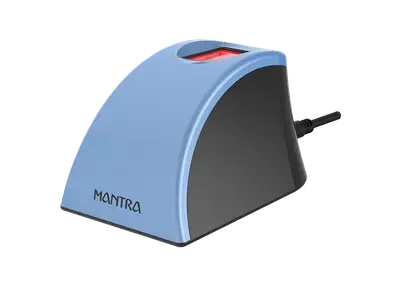
Mantra MFS110
L1 Fingerprint Scanner
Contains integrated hardware encryption modules for L1 compliance.
| File Description | Platform | Version | Size | Action |
|---|---|---|---|---|
MFS110 Device DriverCore hardware recognition software. |
Windows | v2.0.0.0 | 4.79 MB | Get |
MFS110 Windows RD ServiceAadhaar authentication framework API. |
Windows | v1.5.1 | 173.451MB |
Get |
MFS110 Android RD Service APKMobile framework for AEPS apps. |
Android | v1.5.1 | 12.0 MB | Store |
MFS110 Installation ManualStep-by-step PDF setup guide. |
Document | v1.0.0 | 1.90 MB | |
RD Service Release NotesChangelog and security patches. |
Document | v1.5.1 | 610 KB | |
Android RD Setup GuideMobile installation troubleshooting. |
Document | v1.0.0 | 610 KB |
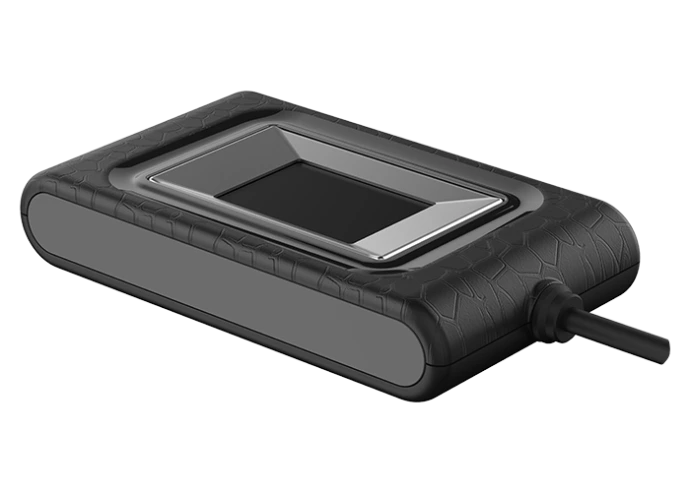
Mantra MARC11
Iris & POS Scanner
Drivers for the integrated multi-modal biometric device.
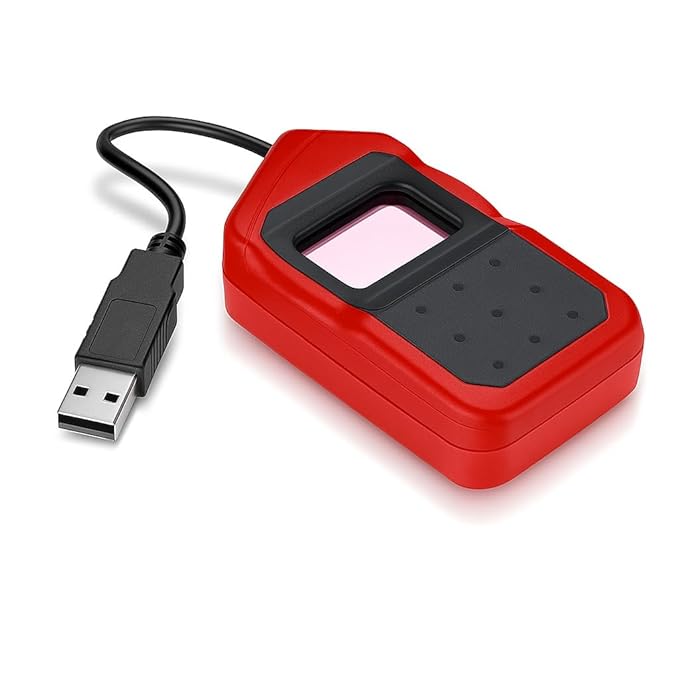
Morpho MSO1300E3
L1 Fingerprint Scanner
Idemia software suite for L1 certified hardware.
| File Description | Platform | Type | Action |
|---|---|---|---|
Morpho Android RD Service + Drivers L1Complete APK package for mobile. |
Android | Suite | Get |
Windows L1 RD (HTTP Port)For web-based browser authentication. |
Windows | RD Service | Get |
Windows L1 RD (HTTP/Localhost)For desktop applications & secure portals. |
Windows | RD Service | Get |
Installation Guide
How to Install Mantra & Morpho RD Service Properly
To avoid common Aadhaar authentication errors, the Mantra or Morpho driver and RD service must be installed in the correct sequence. Follow these exact steps for a clean setup.
Remove Old Software
Open Control Panel > Programs and Features. Uninstall any old Mantra or Morpho RD Service and Client Drivers. Restart the PC to clear the cache.
Download Packages
From the tables above, download both the Device Driver and the Windows RD Service setup files for the specific model (L0 or L1).
Install as Admin
Right-click the Driver setup and select "Run as Administrator". Complete the installation. Repeat the exact same process for the RD Service setup.
Connect & Test
Plug the scanner into a direct USB port. Wait 30 seconds. A system popup should appear at the bottom right saying "Framework is Ready to Use" or success.
Resolve Issues
Fixing Common Software Errors
Even with a successful RD service Mantra or Morpho download, Windows environmental errors might occur. Here is how to diagnose and fix the two most common setup issues without calling technical support.
Error: "Framework Not Ready" / Code 1140
Solution: This means the background service is stopped. Press the Windows Key + R, type services.msc and hit enter. Scroll down the list until you find "Mantra AVDM" or "Morpho RD Service". Right-click it and select Restart. Unplug and replug the device.
Error: "Device Not Connected" / Code 1000
Solution: The software cannot physically see the hardware. First, plug the scanner directly into the back of the PC (avoid USB hubs). If the issue persists, the Mantra or Morpho driver is corrupt. Uninstall it from Control Panel, download a fresh copy from above, and reinstall.
Error: "Device Not Whitelisted" / Code 1001
Solution: This is NOT a driver or software issue. This means the hardware subscription has expired on the UIDAI server. The Recharge Portal must be visited to pay the registration fee and whitelist the serial number again.
The Importance of Certified Biometric Drivers in 2026
Whether operating a Common Service Centre (CSC), an AEPS banking point, or a PM-Kisan authentication hub, the reliability of biometric hardware relies entirely on the software running it. Utilizing an outdated Mantra or Morpho driver and RD service can lead to constant transaction failures, false biometric rejections, and strict UIDAI compliance blocks.
On this portal, direct, unadulterated access is provided to the latest RD service Mantra and Morpho download links, as well as the new mandated Mantra MFS110 RD service download packages. The transition from L0 to L1 security standards means that legacy files must be deleted and the exact L1 suites provided above utilized. Similarly, agents utilizing Idemia hardware can safely execute the Morpho RD service download to ensure MSO1300 E3 scanners remain actively synced with banking servers. Always ensure the hardware is physically connected during installation, and never rely on third-party driver hosting sites that may inject malicious code into payment environments.